Messages
What Are Messages?
A message is a single personalized email sent to one subscriber from a campaign. When you send a campaign to 1,000 subscribers, Laravel Mail Platform creates 1,000 individual messages—one for each recipient.
Think of it this way:
- Campaign — The overall mailing (e.g., "Summer Sale Announcement")
- Messages — Individual emails created from that campaign (one per subscriber)
Each message contains:
- Personalized subscriber data (name, custom fields)
- Unique tracking identifiers (for opens, clicks)
- Delivery status (sent, pending, failed, bounced)
- Timestamps (created, sent, opened)
Accessing Messages
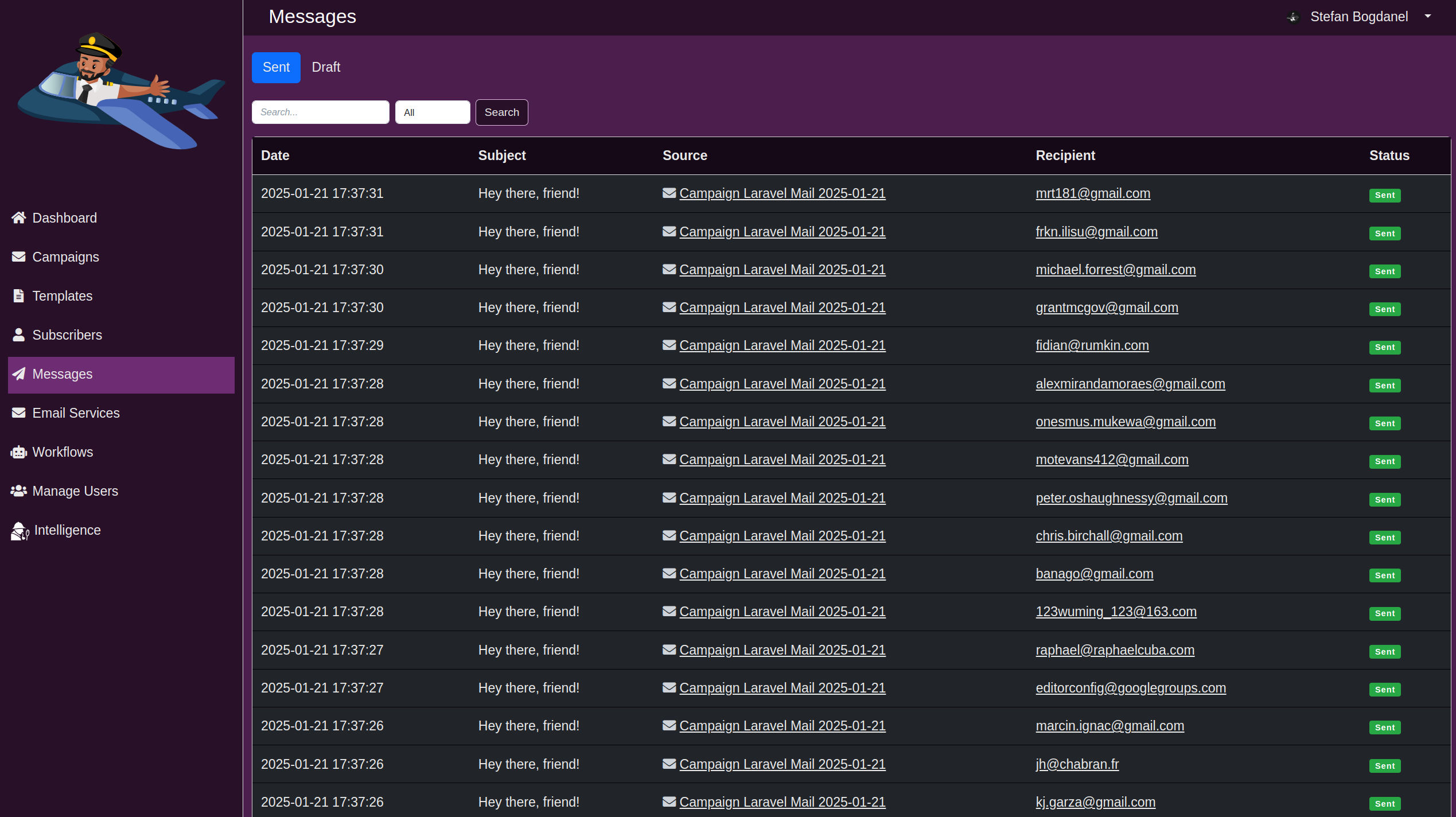
To view all messages in your system:
- Click Messages in the sidebar
- You'll see tabs for Drafts and Sent
- Filter by date, status, or campaign as needed
Message Types
Draft Messages
When they're created:
Draft messages are generated when you send a campaign using the Queue Draft sending behavior. This creates one draft message for each targeted subscriber but doesn't send them immediately.
Why use Queue Draft?
- Review before sending — Check how each personalized message looks before it goes out
- Complex templates — Verify that dynamic content (names, dates, etc.) renders correctly for each recipient
- Manual control — Choose exactly when each message sends
- Quality assurance — Catch errors or formatting issues before they reach subscribers
Important: Queue Draft is only recommended for small subscriber lists (< 1,000). For large lists, manually reviewing thousands of messages is impractical.
What you can do with drafts:
- Preview the personalized message
- Edit the message content if needed
- Send now to that specific subscriber
- Delete without sending
The Drafts Tab
Click the Drafts tab to see all unsent messages:
| Column | Meaning |
|---|---|
| Recipient | Subscriber's email address |
| Campaign | Which campaign created this message |
| Status | Always "Draft" |
| Created | When the message was generated |
| Actions | Preview, Send Now, or Delete |
Actions you can take:
-
Preview — Click the message to see how it will look to the recipient with all personalization applied
-
Send Now — Immediately send the message to the subscriber
-
Delete — Remove the draft without sending (useful if you change your mind about a subscriber)
-
Bulk Actions — Select multiple drafts to send or delete them all at once
Example workflow:
- Create campaign with Queue Draft behavior
- Drafts are generated for all 500 subscribers
- Review a few sample drafts to check personalization
- Send drafts in batches: morning audience, then afternoon audience
- Or send all at once with bulk select
Sent Messages
When they're created:
Sent messages are generated when you send a campaign using the Send Automatically sending behavior, or when you manually send individual drafts.
Key differences from drafts:
| Aspect | Draft | Sent |
|---|---|---|
| When created | Queue Draft behavior | Send Automatically or manual send |
| Status | Draft (not sent yet) | Sent, Bounced, Failed, Delivered |
| Action required | Must manually send | Sent automatically |
| Scalability | For small lists only | For any size list |
| Can edit | Yes, before sending | No, already sent |
The Sent Tab
Click the Sent tab to view all dispatched messages:
| Column | Meaning |
|---|---|
| Recipient | Subscriber's email address |
| Campaign | Source campaign |
| Status | Sent, Delivered, Bounced, Failed, etc. |
| Sent Date | When the message was dispatched |
| Actions | View details, resend, or troubleshoot |
Message Statuses Explained
| Status | Meaning | Action |
|---|---|---|
| Sent | Email dispatched to provider; awaiting delivery confirmation | Normal state |
| Delivered | Email successfully received by mail server | Success |
| Opened | Subscriber opened the email | Engagement tracked |
| Clicked | Subscriber clicked a link in the email | Engagement tracked |
| Bounced | Email couldn't be delivered (hard or soft bounce) | Review bounce reason; remove if hard bounce |
| Failed | Sending attempt failed (auth error, invalid address, etc.) | Review error; may retry |
| Unsubscribed | Recipient unsubscribed before message sent | Message not sent |
| Suppressed | Message suppressed by email service | Check service rules |
Actions on Sent Messages
-
View Details — See full message content, delivery info, engagement metrics
-
Resend — Retry sending to this subscriber (useful for failed messages)
-
View Subscriber — Jump to the subscriber's profile to see history
-
Download — Export message content if needed
Finding Messages
Filter by Status
Use status filters to find specific messages:
Show: All | Sent | Delivered | Bounced | Failed | Opened | Clicked
Examples:
- Bounced messages — Find addresses that need to be cleaned up
- Failed messages — Retry or investigate errors
- Opened messages — See who engaged with content
- Clicked messages — Track conversions
Filter by Campaign
See messages from a specific campaign:
Campaign: [Select Campaign ▼]
Filter by Date Range
Find messages sent in a specific period:
Date: [From] to [To]
Search by Recipient
Find messages sent to a specific email address:
Search: user@example.com
Bulk Filter
Combine multiple filters to narrow results:
Example: "All messages from Campaign: Summer Sale, sent in June, with status: Clicked"
Working with Messages
Preview a Message
To see how a message appears to the recipient:
- Click Preview on any message
- View the complete email with personalization applied
- Check formatting, links, and images
- Close preview to return to list
For drafts: Make sure names and custom fields appear correctly before sending.
Send a Draft Message
To manually send an individual draft:
- Go to Drafts tab
- Find the message you want to send
- Click Send Now
- Confirm the action
- Message moves to Sent tab
Note: The message is sent using your configured email service.
Resend a Failed Message
If a message failed to deliver, you can retry:
- Go to Sent tab
- Filter by Status: Failed
- Click Resend on the message
- System attempts delivery again
Useful for: Temporary failures (mailbox full, server timeout) that may succeed on retry.
Bulk Send Drafts
To send multiple drafts at once:
- Go to Drafts tab
- Select multiple messages using checkboxes
- Click Bulk Actions → Send
- Confirm batch send
- All selected messages are sent
Example: Send morning batch at 9 AM, afternoon batch at 2 PM.
Bulk Delete Drafts
Remove multiple drafts without sending:
- Go to Drafts tab
- Select messages to delete
- Click Bulk Actions → Delete
- Confirm deletion
Warning: This cannot be undone. Ensure you're not deleting drafts you intended to send.
Export Messages
Download message data for analysis or record-keeping:
- Select messages you want to export
- Click Export
- Choose format (CSV or JSON)
- Save file
Exported data includes:
- Recipient email
- Campaign name
- Status
- Sent date
- Delivery information
- Engagement metrics
Understanding Message Analytics
Each sent message tracks important engagement metrics:
Delivery Metrics:
- Sent — Message dispatched to email service
- Delivered — Confirmed delivery to recipient's mail server
- Bounce Rate — Percentage of messages that bounced
Engagement Metrics (if tracking enabled):
- Open Rate — Percentage of recipients who opened the email
- Click Rate — Percentage of recipients who clicked links
- Unsubscribe Rate — Percentage who unsubscribed after opening
Example: 1,000 messages sent → 850 delivered → 200 opened (23.5% open rate) → 45 clicked (5.3% click rate)
Common Message Scenarios
Scenario 1: Checking Draft Quality
Situation: You created a campaign with Queue Draft to review before sending.
Steps:
- Go to Drafts
- Click Preview on 3-5 sample messages
- Verify personalization looks correct
- Check formatting and links
- If satisfied, click Bulk Select All → Send
Scenario 2: Investigating Failed Messages
Situation: Some messages failed to deliver. You need to fix and resend.
Steps:
- Go to Sent tab
- Filter by Status: Failed
- Click View Details on a failed message
- Read error message (invalid address? auth error? provider issue?)
- Click Resend if it's a temporary error
- Or go to Subscribers to fix the recipient's email address and resend
Scenario 3: Following Up with Engaged Users
Situation: You want to send a follow-up campaign only to people who clicked your last campaign.
Steps:
- Go to Sent tab
- Filter by Status: Clicked
- View list of engaged subscribers
- Export subscriber emails
- Use this list for your next campaign targeting
Scenario 4: Cleaning Up Bounced Addresses
Situation: Multiple emails bounced. You need to remove bad addresses.
Steps:
- Go to Sent tab
- Filter by Status: Bounced
- For each bounce, review the bounce type:
- Hard Bounce (invalid address) — Remove subscriber
- Soft Bounce (mailbox full) — Keep for now, maybe retry later
- Go to Subscribers and mark/remove bounced addresses
- Update suppression list
Best Practices
When to Use Each Sending Method
Use "Queue Draft" when:
- Subscriber list is small (< 500 recipients)
- You have complex personalization that needs review
- You want manual control over when each message sends
- Quality assurance is critical (important announcements)
Use "Send Automatically" when:
- Subscriber list is large (> 1,000 recipients)
- You want fire-and-forget simplicity
- You've tested the campaign and are confident
- Speed is important (time-sensitive campaigns)
Monitoring Message Health
Check your messages regularly for:
- High bounce rates (> 5%) — May indicate list quality issues
- Failed messages — Retry or investigate
- Undelivered messages — Review error logs
- Low engagement — Check email content or timing
Managing Queue Size
If you have thousands of draft messages:
- Don't use Queue Draft for massive lists
- Send drafts in batches over time
- Delete old drafts you won't use
- Archive sent messages after review period
Troubleshooting Messages
"Message won't send" or "Send Now button disabled"
Possible causes:
- Email service not configured (go to Settings → Email Services)
- Message missing required fields
- Subscriber email invalid
- Campaign deleted (orphaned message)
Solution: Check email service is active and subscriber email is valid.
"Bounced message" with generic error
Meaning: The recipient's email provider rejected the message.
Common reasons:
- Invalid email address
- Mailbox doesn't exist
- Recipient's mail server rejected sender IP
Solution: Verify email address in subscriber profile; remove if hard bounce.
"Failed message" with authentication error
Meaning: Email service rejected sending.
Causes:
- Wrong email service credentials
- Email service account suspended
- Rate limit exceeded
Solution: Go to Email Services; verify credentials and test connection.
High bounce rates on a campaign
Investigation:
- Check if subscriber list was recently imported
- Compare bounce rate to historical campaigns
- Review email content (may trigger spam filters)
- Check sender reputation with email service
Action:
- Use email validation before importing
- Verify SPF/DKIM/DMARC records
- Consider list cleaning service
"Cannot resend" old message
Reason: Email service may not store message history long-term.
Solution: Recreate the campaign and send again to the subscriber.
Advanced Message Operations
Segmented Sending
Send the same campaign in waves:
- Create campaign with Queue Draft
- Tag subscribers by segment (morning people, evening people, etc.)
- Create separate messages for each segment using campaign targeting
- Review a sample from each segment
- Send each segment at optimal time of day
Conditional Resending
Automatically resend to failed recipients:
- Filter messages by Status: Failed
- Identify the root cause (temporary vs. permanent)
- Use Resend for temporary failures
- Update subscriber data for permanent failures
- Retry failed group
Message Archiving
Keep sent messages but archive old ones:
- Export sent messages older than 30 days
- Download CSV for record-keeping
- Delete old messages to clean up database
- Repeat monthly
Limits and Performance
Message limits:
- No hard limit on total messages
- Display shows 100 messages per page (pagination available)
- Bulk operations limited to 1,000 messages at a time
For large volumes:
- Use filters to narrow results
- Export data periodically
- Archive old sent messages
- Use bulk operations instead of individual edits
Related Documentation
- Campaigns — Create and send campaigns
- Email Services — Configure sending providers
- Subscribers — Manage recipient lists
- Analytics — View campaign performance
Quick Reference
Key Actions:
- Preview — See message as recipient will see it
- Send Now — Immediately send a draft
- Resend — Retry a failed message
- Export — Download message data
Filters:
- Status (Sent, Bounced, Failed, Opened, Clicked)
- Campaign name
- Date range
- Recipient email
Common Statuses:
- Draft — Not sent yet
- Sent — Dispatched successfully
- Delivered — Confirmed receipt
- Bounced — Rejected by recipient's mail server
- Failed — Sending attempt failed
- Opened — Recipient opened email
- Clicked — Recipient clicked a link
Tabs:
- Drafts — Messages queued for manual sending
- Sent — Messages already dispatched